Firewall Integration: Fortinet IP Blocklist
Written By XavierBe
Last updated 12 months ago
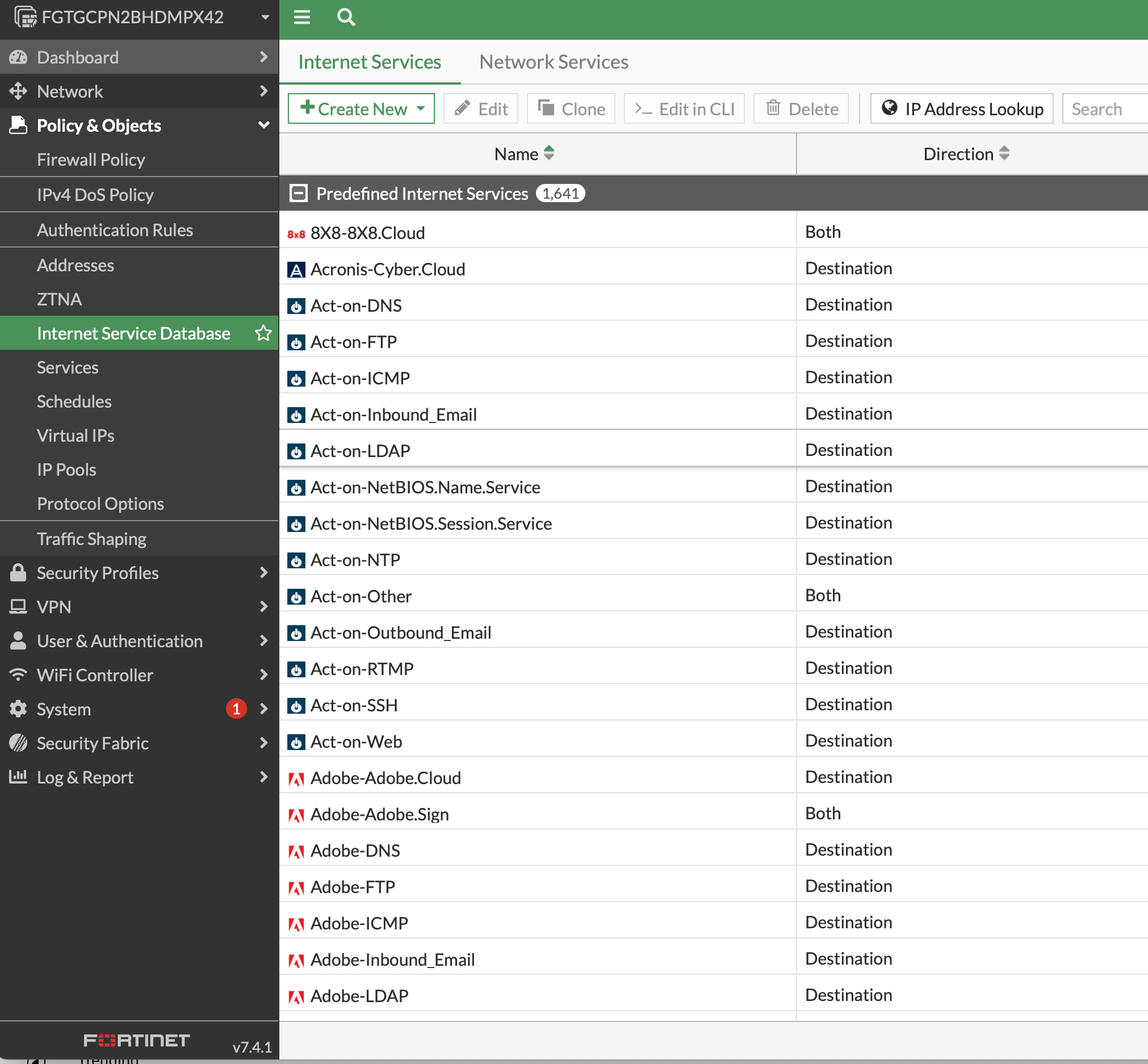
Accessing the FortiGate Web Interface
Enter the FortiGate IP Address/Hostname: Type in the IP address or hostname of your FortiGate device into the address bar, followed by
:443to specify the port (e.g.,https://192.168.1.1:443).Log in: Enter your username and password when prompted to access the FortiGate dashboard.
Setting Up Security Fabric
Navigate to Security Fabric: In the left-hand menu, click on “Security Fabric”.
Configure Security Fabric: Ensure that Security Fabric is enabled and properly configured to include all relevant devices in your network.
Configuring an External Connector
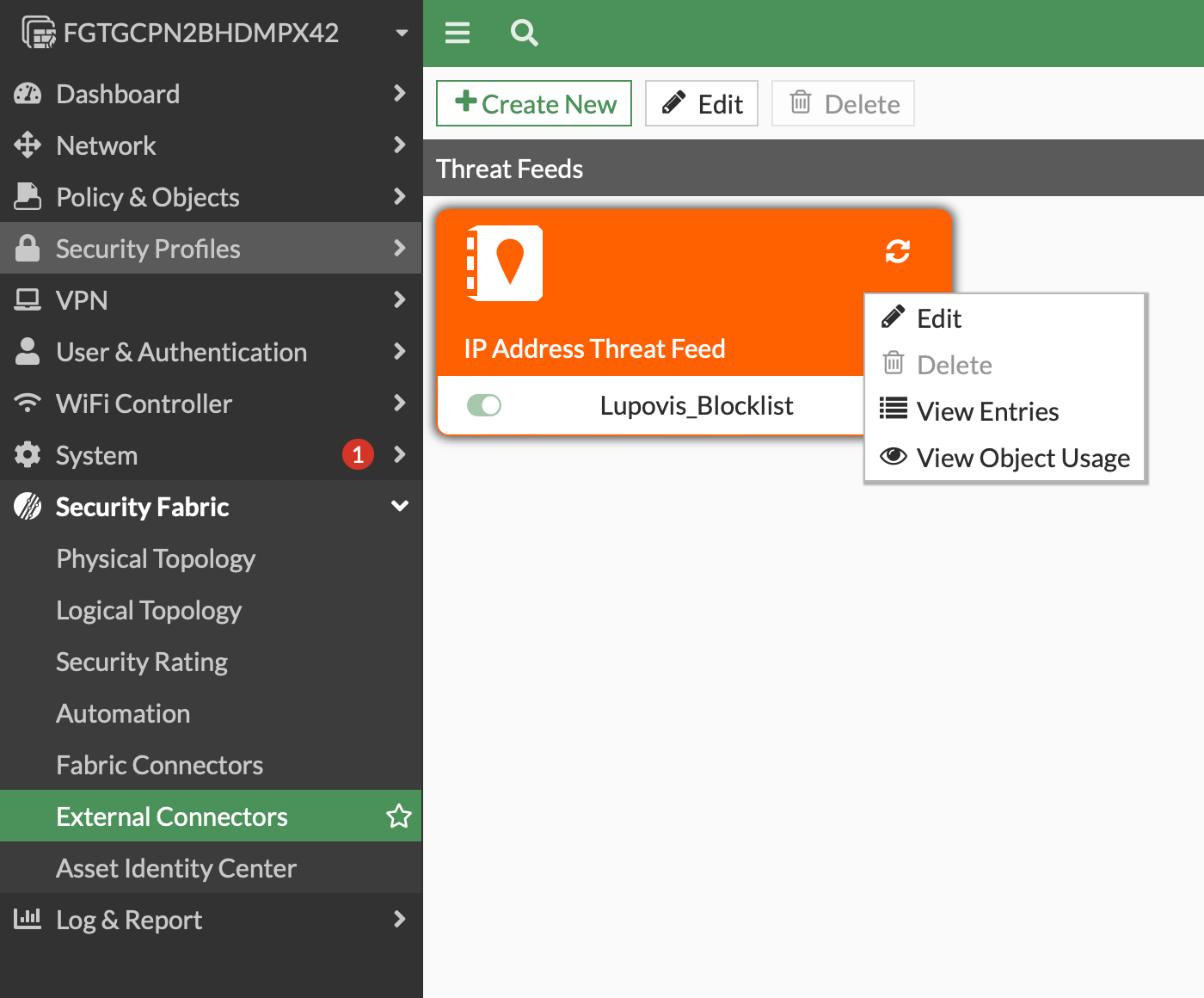
Go to External Connectors: Within the “Security Fabric” settings, find and select “External Connectors”.
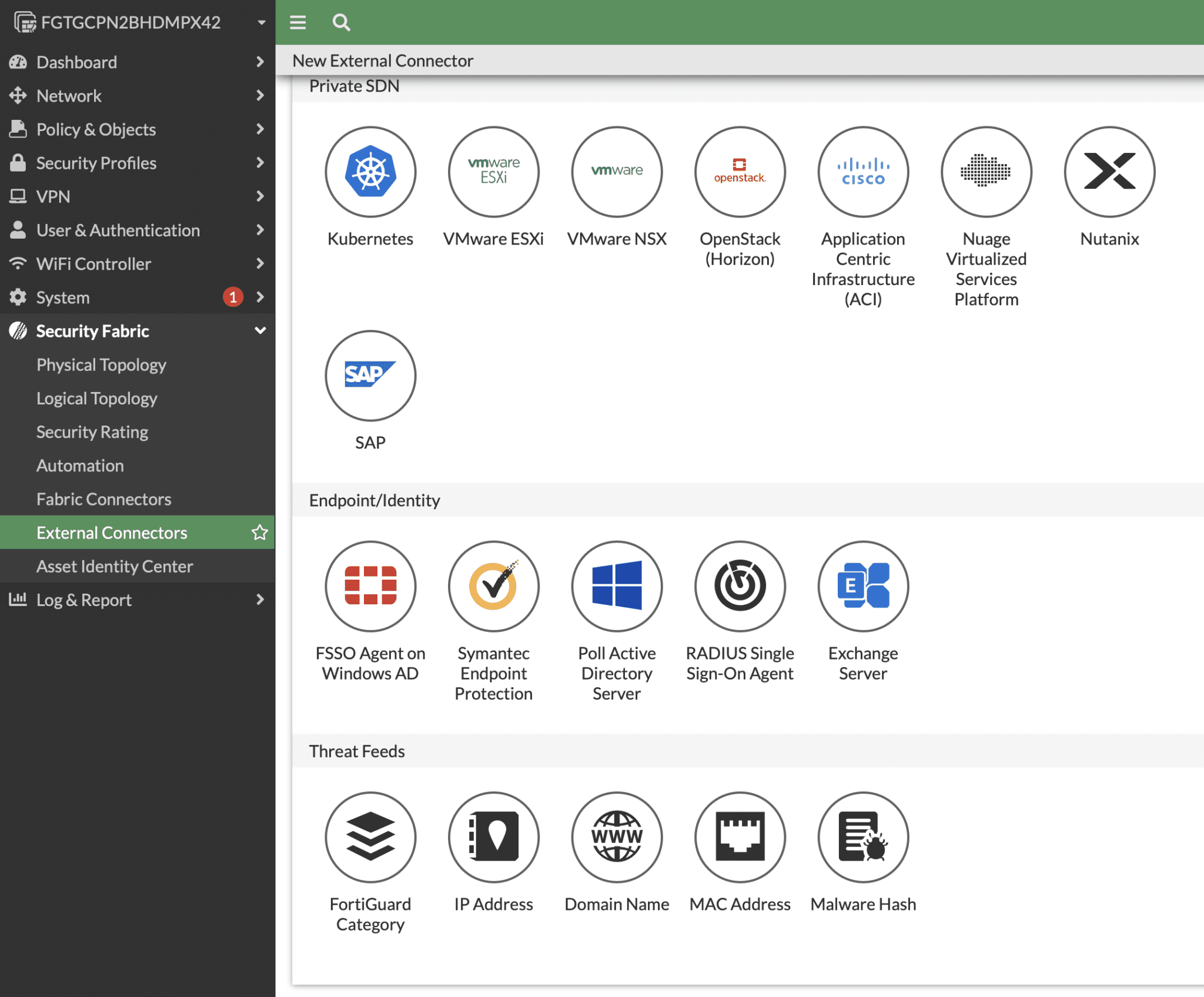
Add a New Connector: Click “IP Addresses” or “Add” to set up a new external connector.
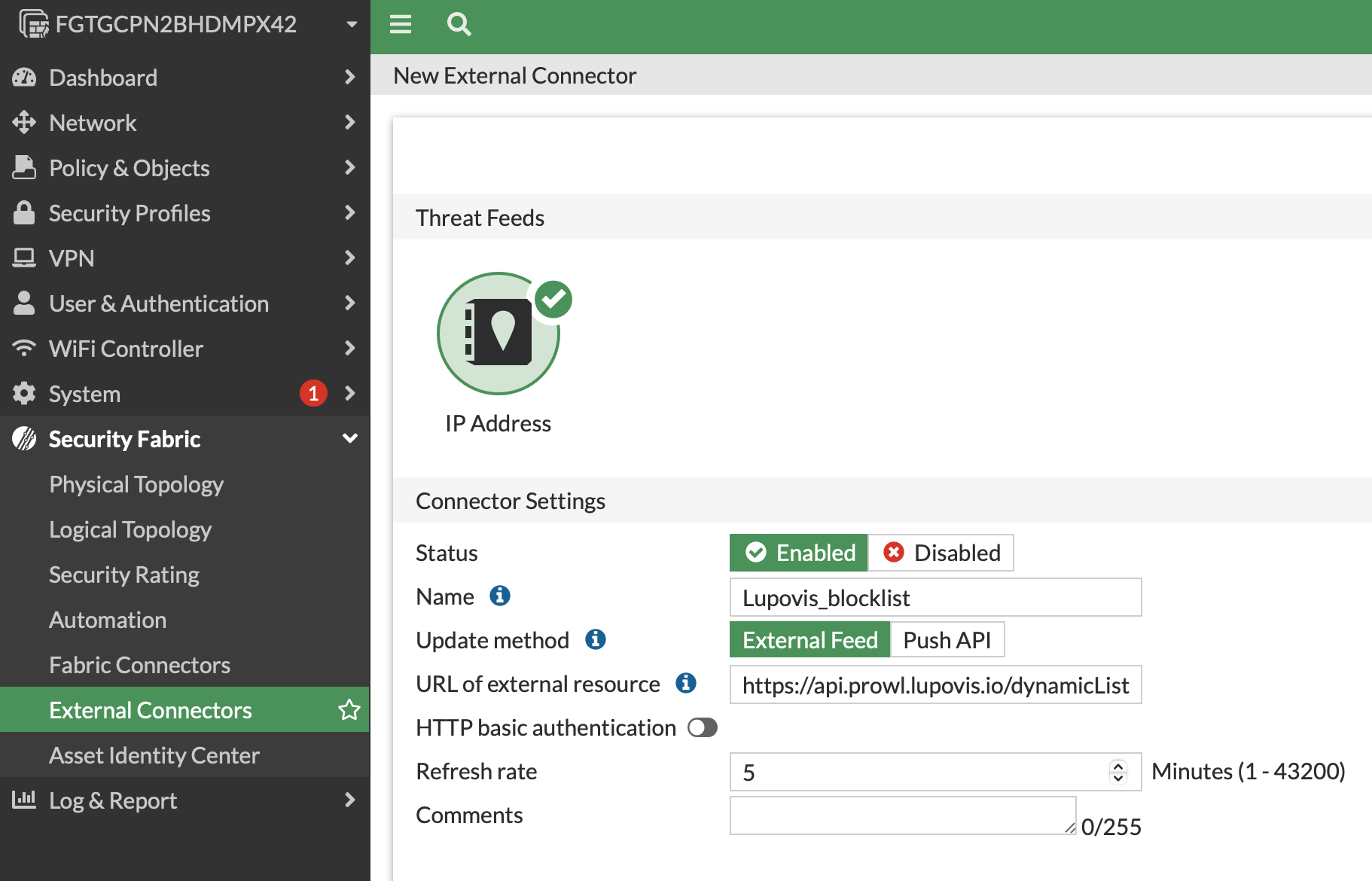
Configure the Threat Feed:
Name: Give the connector a descriptive name.
Feed URL: Enter the URL of the dynamic blocklist/threat feed.
Update Interval: Set how frequently FortiGate should pull updates from the threat feed.
Test Connection: Ensure that FortiGate can successfully retrieve data from the threat feed URL.
Applying the Block list to Security Policies
Navigate to Firewall Policy: Under “Policy & Objects”, select “Firewall Policy”.
Edit an Existing Policy or Create a New One: Choose a policy to edit or create a new policy where you want to apply the block list.
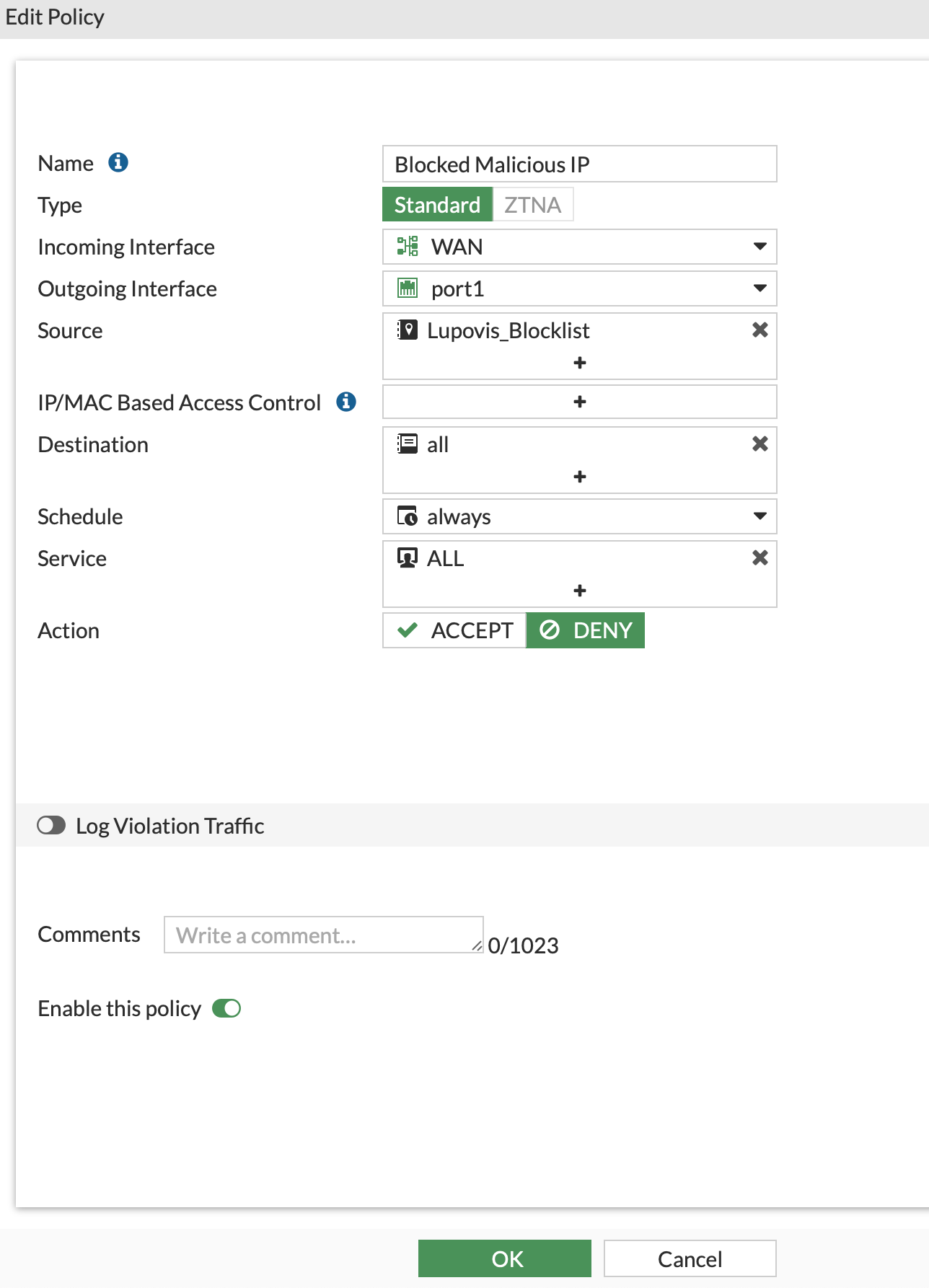
Apply the External Connector:
In the policy settings, locate the section for source or destination addresses.
Add the external connector you’ve configured to the policy, in our case. Lupovis_Blocklist
Configure the rules to match incoming traffic
Right click and Edit CLI
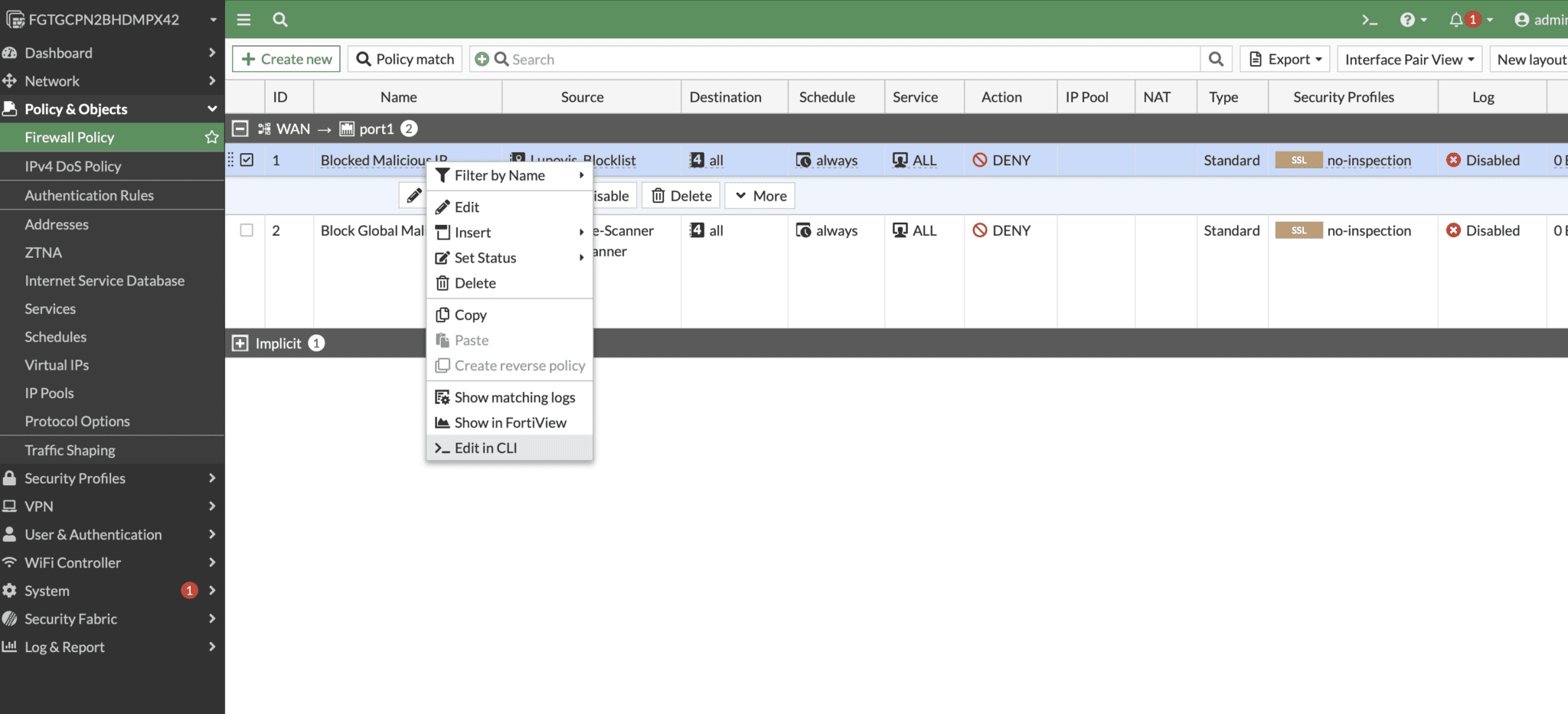

Type in Set match-vip enable
The set match-vip command in FortiGate’s firewall policy configuration is used to control how the firewall handles traffic in relation to Virtual IPs (VIPs) configured on the device.
When you configure a VIP on a FortiGate device, you are essentially setting up a rule to forward traffic from one IP address to another, usually from a public IP address to a private IP address behind the firewall. This is often used for services such as web hosting, where you need to make an internal resource available externally.
Verifying and Monitoring
Monitor Traffic: Use the “Log & Report” section to monitor network traffic and ensure that the dynamic blocklist is actively being enforced.
Regularly check that the IP are being updated
Was this helpful?
Still need help? Share an idea