Lupovis Single Sign-On Guide
Written By XavierBe
Last updated 12 months ago
Lupovis supports Single Sign-On through Microsoft. To access the platform, you must sign in using a Microsoft or Microsoft 365 account. This ensures secure authentication and allows your organisation to manage access through its existing Microsoft identity policies. Once your account is authorised, you can log in directly without creating a separate Lupovis password.
Here is a step-by-step guide
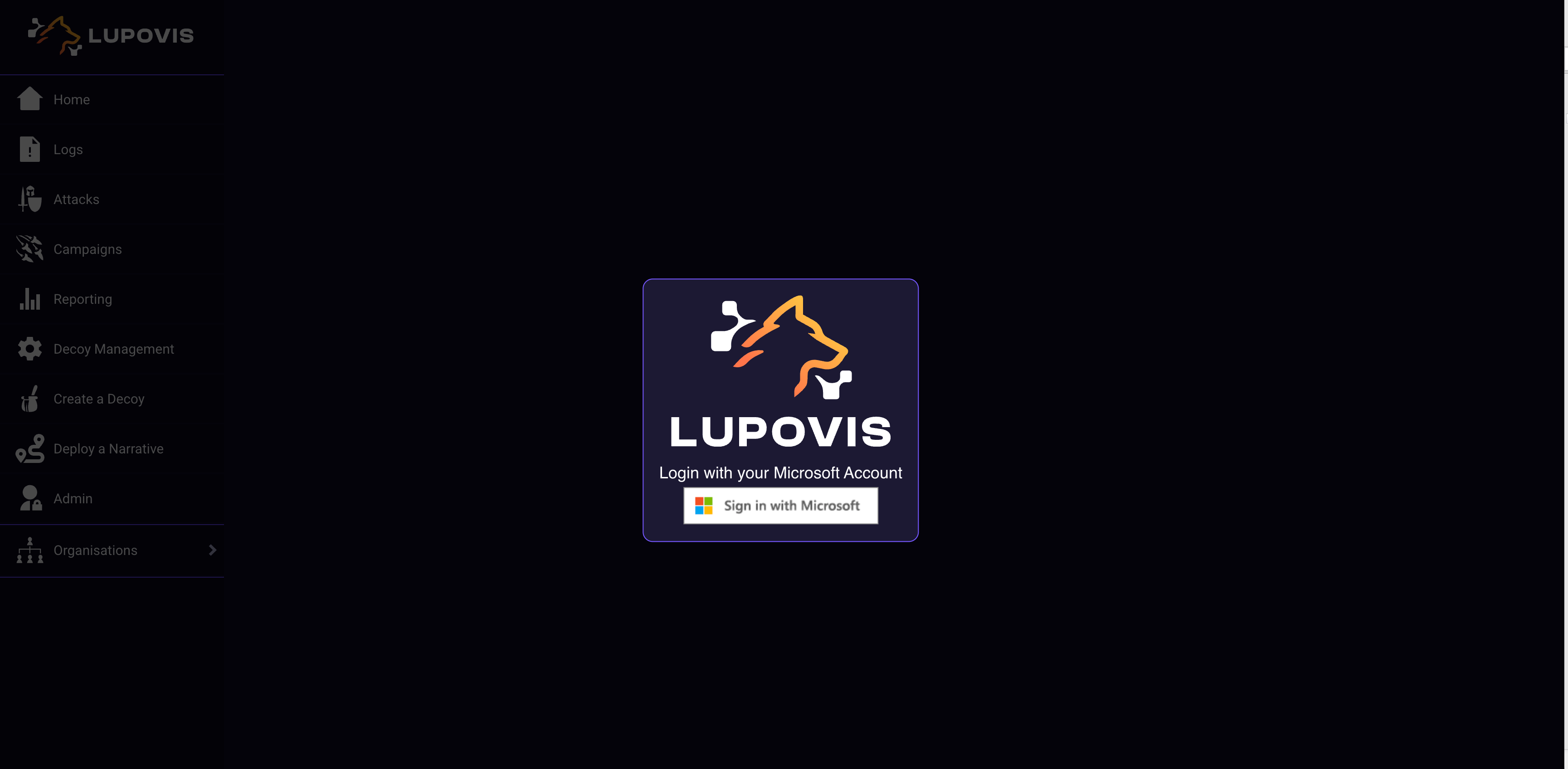
Browse the Lupovis platform
Selecting “Sign in with Microsoft” will automatically use your Azure AD (Entra) account and redirect you to the Microsoft identity provider.
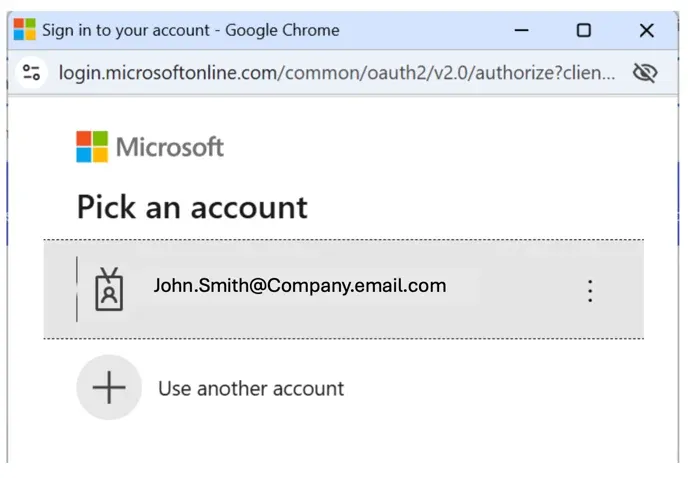
Select your account
If you have several Microsoft accounts (such as university, personal, or work), you can then choose the appropriate company account from the list — this is your Azure AD account.
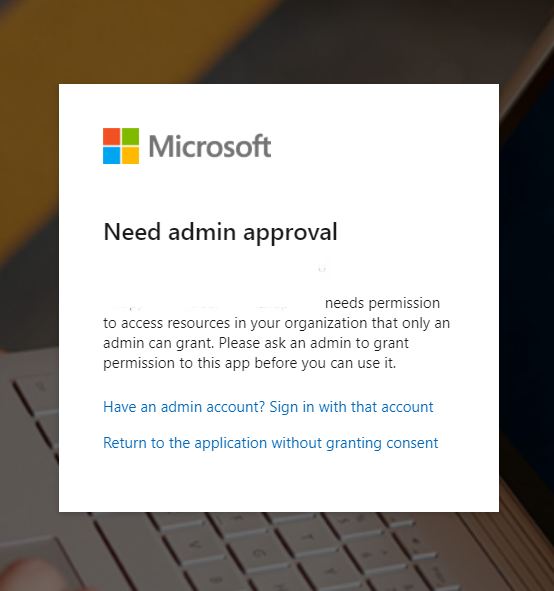
Approval
You might then be prompted to grant administrator approval, as shown:
Based on your Azure AD configuration, if you have the option to ‘Request Access’, select that and add a justification and select ‘Request Access’.
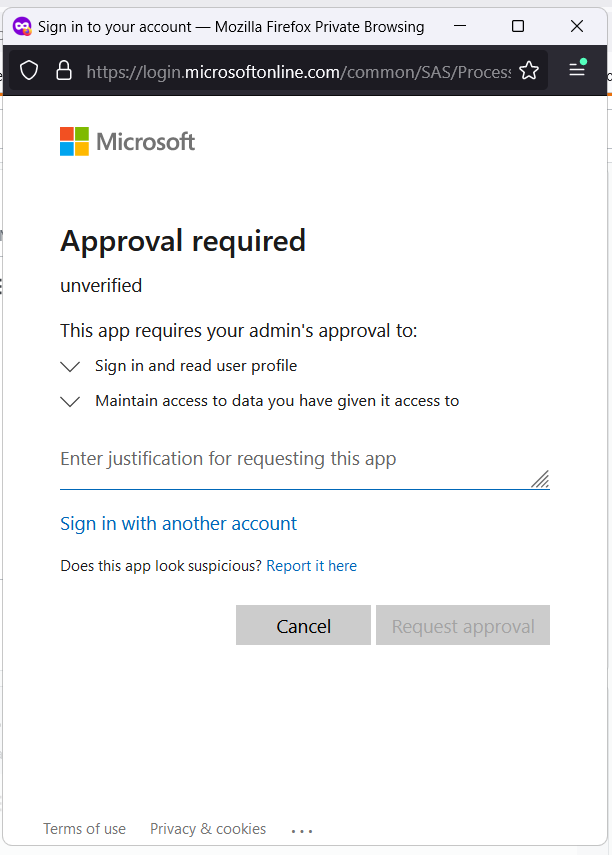
Awaiting Approval
After submitting your access request, an Azure AD administrator from your organisation will need to approve it. Once approved, you’ll be all set.
🚨 No Approval Request Button
If you don’t have the option to request access, an Azure AD administrator will need to complete the previous steps and approve it directly, following the same process outlined above.
Was this helpful?
Still need help? Share an idea